

Bytelabs Pos — Store Owner Android App
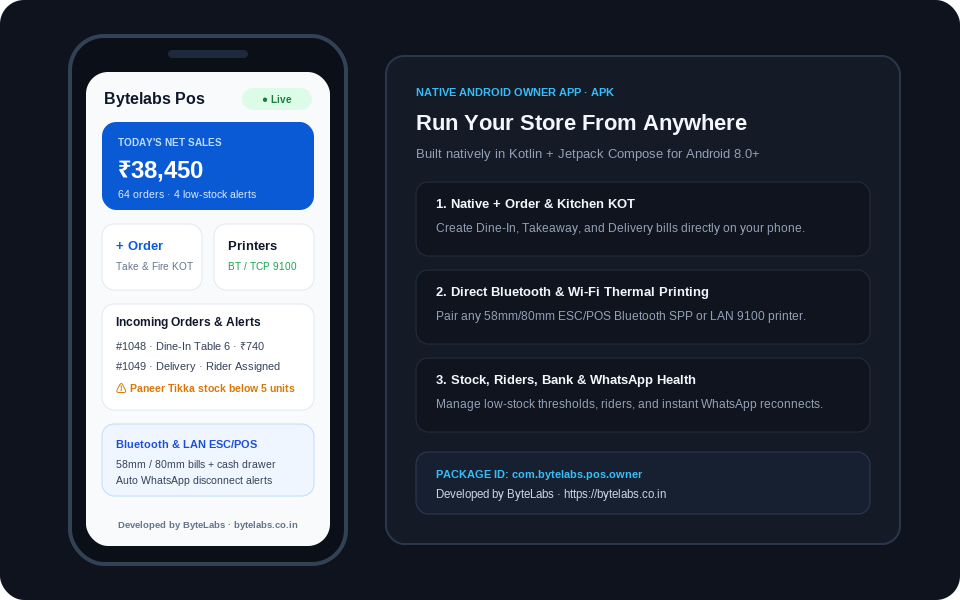
Manage your store from your pocket or Android POS terminal: live sales KPIs, native + Order builder, KOT firing, stock & low-stock alerts, WhatsApp reconnect prompts, rider management, and Bluetooth/TCP thermal printing.
System requirements: Android 8.0 Oreo or higher · Phones & POS Android Tablets
- Home Business Summary with today sales, order modes, low-stock & incoming online alerts
- Native + Order builder for Dine-In, Takeaway, and Delivery with instant KOT firing
- Restock items, configure low-stock alert thresholds, manage tables, and assign delivery riders
- Bluetooth SPP & Network TCP 9100 58mm/80mm thermal printing + RJ11 cash drawer pulse
- Embedded POS WebView fallback and instant WhatsApp QR disconnect/reconnect alerts
Step-by-Step Setup Guide
How to install & configure Android Owner
- 1
Download ByteLabs-POS-Owner.apk on your Android device
Tap "Download POS Owner (.apk)" directly on your Android phone or POS tablet.
- 2
Allow APK installation from your browser
Open the downloaded .apk file. If Android prompts "For your security, your phone is not allowed to install unknown apps from this source", tap Settings → enable "Allow from this source", then tap Install.
- 3
Sign in with your store credentials
Open Bytelabs Pos, sign in via Password, WhatsApp/Email OTP, or Web POS Login, and pair your Bluetooth or LAN thermal printer in Settings.
Verify Download Integrity (SHA-256)
Every official ByteLabs installer includes a published SHA-256 checksum so you can confirm the file has not been modified in transit.
sha256sum "ByteLabs-POS-Owner.apk"Expected: de2bbcb49069ff811d0776340186f0fa5187340930f69aea89fc7565a8060447
Troubleshooting & FAQ
Google Play Protect shows "Install anyway" or "Blocked"?
Because this APK is distributed directly from bytelabspos.com rather than Google Play, tap "More details" → "Install anyway", or verify the SHA-256 checksum listed above.
Bluetooth printer not showing in the list?
First pair your 58mm/80mm thermal printer in Android Bluetooth Settings (PIN is usually 0000 or 1234), then allow Nearby Devices / Bluetooth permission inside Bytelabs Pos Settings.
Need onboarding help? Contact [email protected] or visit bytelabs.co.in.