

ByteLabs POS Desktop for macOS
Run the full ByteLabs POS suite on your Mac counter, cafe iPad-counter Mac mini, or back-office MacBook with menu-bar tray controls, CUPS silent printing, LAN TCP 9100 thermal support, and offline till sync.
System requirements: macOS 12 Monterey or newer · Apple Silicon (M1–M4) & Intel x64
- Dedicated Apple Silicon (arm64 for M1/M2/M3/M4) and Intel (x64) .dmg disk images
- Standard macOS menu bar tray, Cmd+C/V/X/A, Cmd+, settings, and native fullscreen kiosk mode
- Silent macOS CUPS receipt/KOT printing and direct LAN/Wi-Fi TCP 9100 ESC/POS + cash drawer
- Pop-out Kitchen Display (Cmd+Shift+K) and Customer Display (Cmd+Shift+D) on secondary monitors
- Includes INSTALL_MACOS.txt inside the .dmg and persistent offline IndexedDB storage
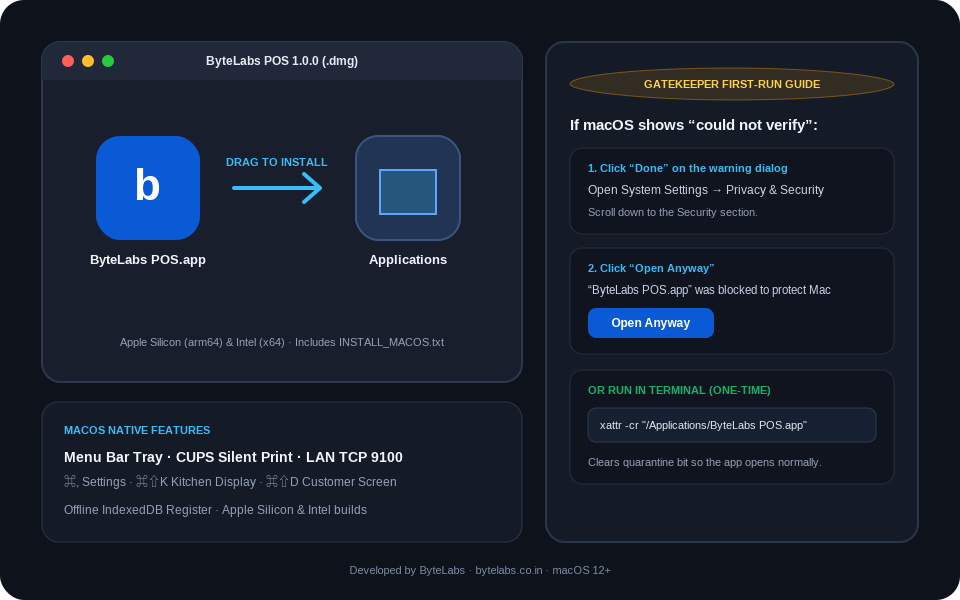
macOS First-Launch Guide (Gatekeeper)
Fixing “Apple could not verify ByteLabs POS.app is free of malware”
macOS shows this standard alert when opening downloaded apps that are not notarized through Apple's paid Developer ID notary service. After dragging ByteLabs POS.app into Applications, allow it once using either method below:
Method 1 · System Settings (No Terminal)
- 1. Click Done on the Apple verification popup.
- 2. Open System Settings → Privacy & Security.
- 3. Scroll down to the Security section and click Open Anyway next to ByteLabs POS.app.
- 4. Enter your Mac password or Touch ID to launch.
Method 2 · One-Time Terminal Command
Clears the browser download quarantine flag on the installed app bundle:
xattr -cr "/Applications/ByteLabs POS.app"Step-by-Step Setup Guide
How to install & configure macOS
- 1
Choose Apple Silicon (.dmg) or Intel (.dmg)
On M1/M2/M3/M4 Macs download the arm64 .dmg; on older Intel Macs download the x64 .dmg (check Apple Menu → About This Mac).
- 2
Drag ByteLabs POS.app into Applications
Double-click the downloaded .dmg file, then drag ByteLabs POS.app onto the Applications shortcut inside the Finder window.
- 3
Allow first launch in Privacy & Security (Gatekeeper)
Because this cross-built .dmg is not yet Apple-notarized, macOS may show "Apple could not verify ByteLabs POS.app is free of malware". Click Done → open System Settings → Privacy & Security → scroll to Security and click "Open Anyway", OR run the one-time Terminal command below:
Terminal Commandxattr -cr "/Applications/ByteLabs POS.app"Only needed once after downloading from the browser.
- 4
Sign in & configure printers (⌘,)
Open ByteLabs POS from Applications, sign in to your store, and press Cmd+, to pick your macOS CUPS printer or LAN TCP 9100 thermal printer.
Verify Download Integrity (SHA-256)
Every official ByteLabs installer includes a published SHA-256 checksum so you can confirm the file has not been modified in transit.
shasum -a 256 "ByteLabs-POS-1.0.0-arm64.dmg"Expected: 91336d9db71e986eb64c21e2b2c7fdd2025d0a2352cbd83d3e40ab232709d012
Troubleshooting & FAQ
Why does macOS say "Apple could not verify ByteLabs POS.app is free of malware"?
macOS Gatekeeper displays this alert for downloaded apps that do not carry an Apple Developer ID notarization ticket. After dragging ByteLabs POS.app to Applications, click Done, open System Settings → Privacy & Security → click "Open Anyway", or run xattr -cr "/Applications/ByteLabs POS.app" in Terminal. You can also verify the SHA-256 checksum on this page.
How do I check if my Mac is Apple Silicon or Intel?
Click the Apple logo () in the top-left corner → About This Mac. Chips starting with Apple M1/M2/M3/M4 use Apple Silicon (arm64); Intel Core processors use Intel (x64).
Need onboarding help? Contact [email protected] or visit bytelabs.co.in.