

ByteLabs Rider — Delivery Fleet Android App
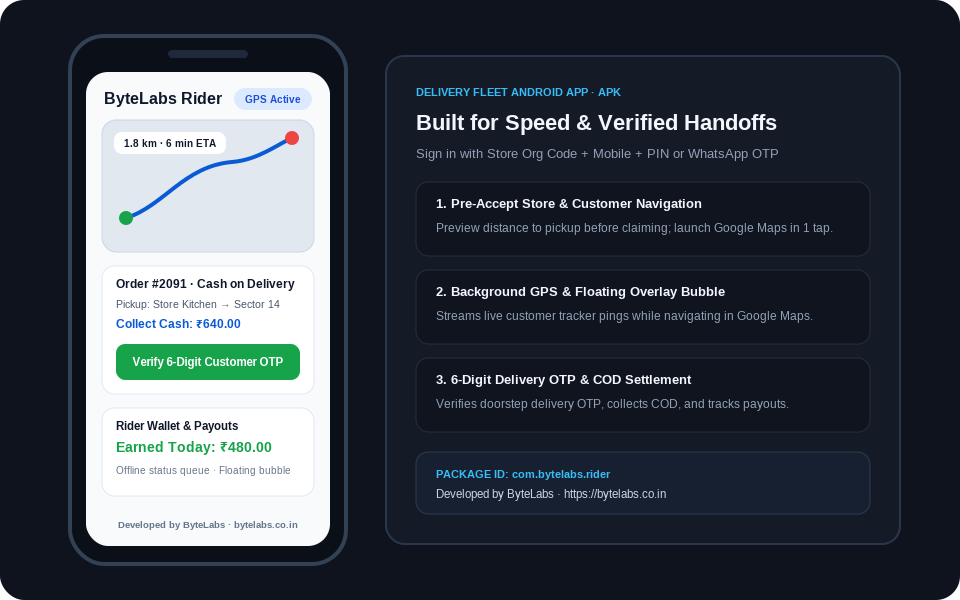
Built for store delivery riders: sign in or register using Store Org Code + Mobile & PIN, preview store pickup routes before accepting orders, stream live GPS while navigating in Google Maps, and verify doorstep delivery with 6-digit OTP & COD collection.
System requirements: Android 8.0 Oreo or higher · Delivery Rider Smartphones
- Sign in or Sign up with Store Org Code + Mobile + Rider PIN or WhatsApp OTP
- Pre-Accept Store Navigation: preview store distance and open Google Maps before claiming
- Background GPS foreground service + floating trip bubble over Google Maps
- 6-digit customer delivery OTP verification, recipient proof & COD cash reporting
- Encrypted offline status queue + Rider Wallet & Bank/UPI payout details
Step-by-Step Setup Guide
How to install & configure Android Rider
- 1
Download ByteLabs-Rider.apk on the rider phone
Share the direct link https://bytelabspos.com/download/android-rider with your delivery riders via WhatsApp so they can download directly.
- 2
Install the APK & grant Location / Overlay permissions
Allow your browser to install the APK, open ByteLabs Rider, and grant Location ("Allow all the time" for live customer tracking) plus Display over other apps for the floating bubble.
- 3
Sign in with Store Org Code + Mobile + PIN
Enter your store Org Code (e.g. your store slug), mobile number, and 4–8 digit Rider PIN (or request WhatsApp OTP) to start receiving orders.
Verify Download Integrity (SHA-256)
Every official ByteLabs installer includes a published SHA-256 checksum so you can confirm the file has not been modified in transit.
sha256sum "ByteLabs-Rider.apk"Expected: 776d25081114e8e5c822cef248e0df09e04a7ab51010fd3e11bed6b0b451c5c1
Troubleshooting & FAQ
Customer live tracking stops when Google Maps is open?
Set Location permission for ByteLabs Rider to "Allow all the time" and disable battery optimization for ByteLabs Rider in Android App Info.
Rider does not know their Store Org Code?
Store owners can find the Store Org Code inside POS → Delivery → Riders or Business Settings, and share it along with the Rider PIN.
Need onboarding help? Contact [email protected] or visit bytelabs.co.in.